Applications
This guide explores working with applications. Applications are deployable workloads that Epinio builds, deploys, and manages on Kubernetes. For more information, see the applications reference page.
View Applications
- UI
- CLI
To view all your applications, navigate to the Applications page in the side navigation menu. Applications are grouped by namespace.
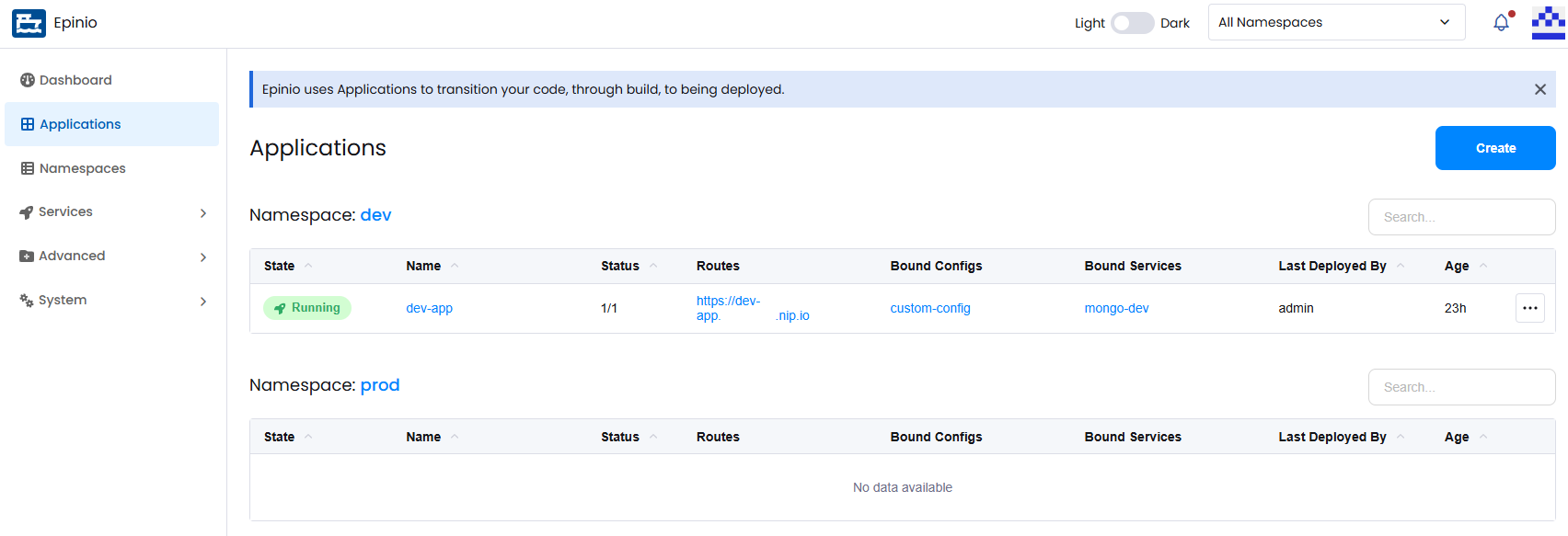
List all applications:
epinio app list
Create an Application
- UI
- CLI
Click Create on the Applications page to open the creation modal. App creation involves four steps.
Application Source
Provide your application source to Epinio. If you have an application manifest you can upload it directly. Otherwise, you can provide your source in any of the following ways:
- Container image
- Archive file
- From folder
- Git URL
- GitHub
- GitLab
After providing your source, select the application chart and builder image you would like Epinio to use.
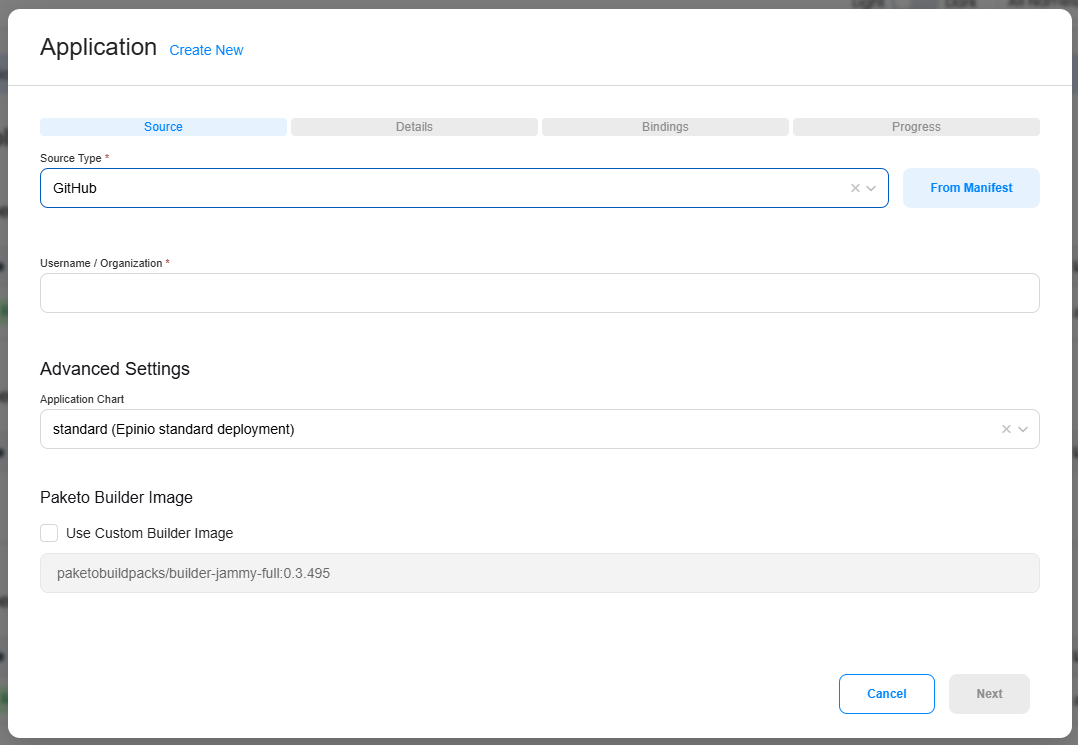
Application Details
Assign your application to a namespace and provide it a name. You can also configure the number of instances, set custom routes, define environment variables, and, depending on the selected application chart, configure additional chart-specific settings.
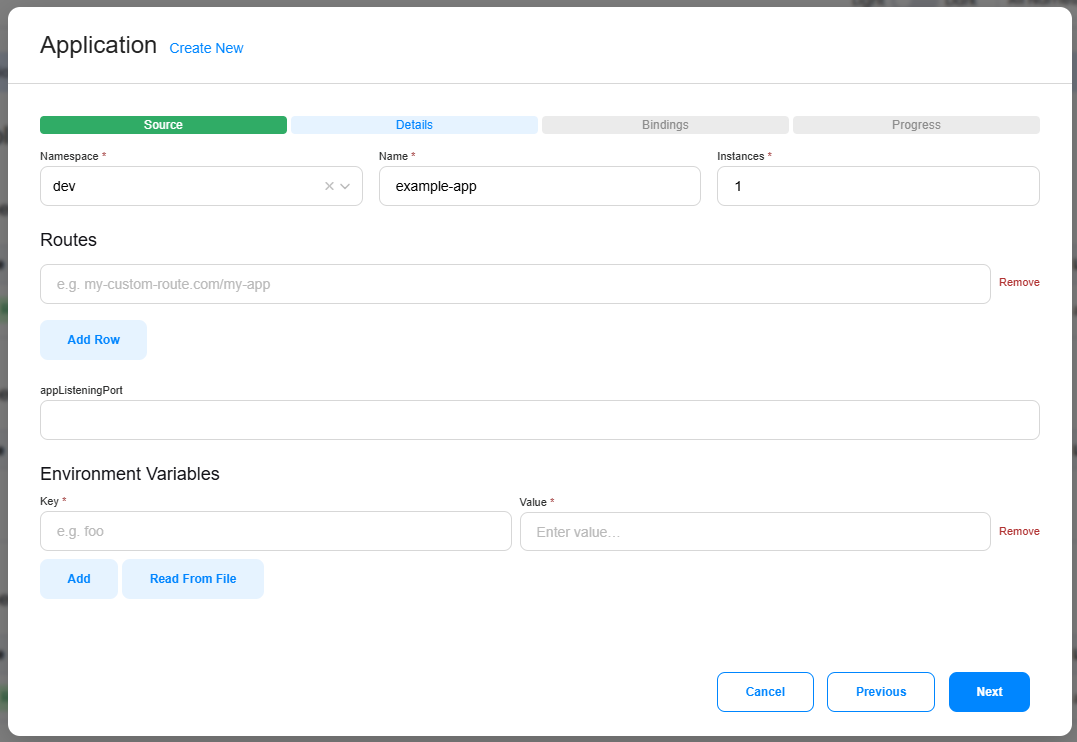
Application Bindings
Bind any configurations and services that your application requires. Bindings are limited to resources in the same namespace.
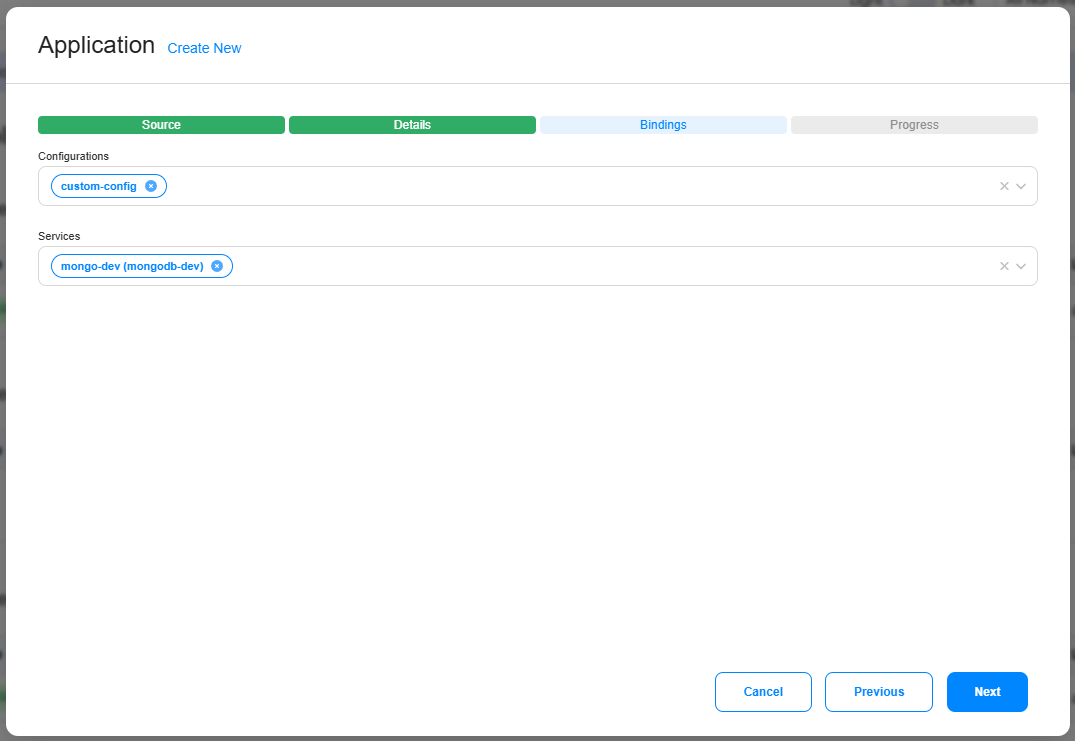
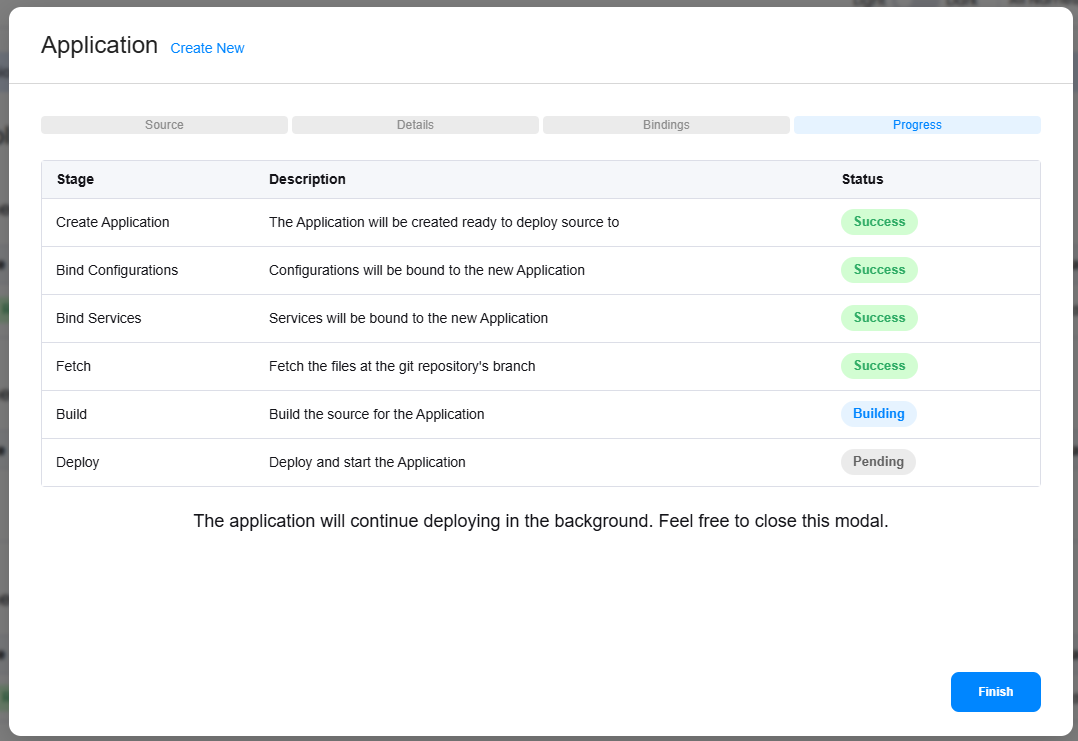
Application Progress
Epinio will now build and deploy your application. You can watch the progress in the modal or close it, creation continues in the background and you will be notified when complete. A shell terminal will also appear at the bottom of the screen to let you monitor the process in real time.
Deploy an application from the current directory:
epinio app push -n myapp
View Application Details
- UI
- CLI
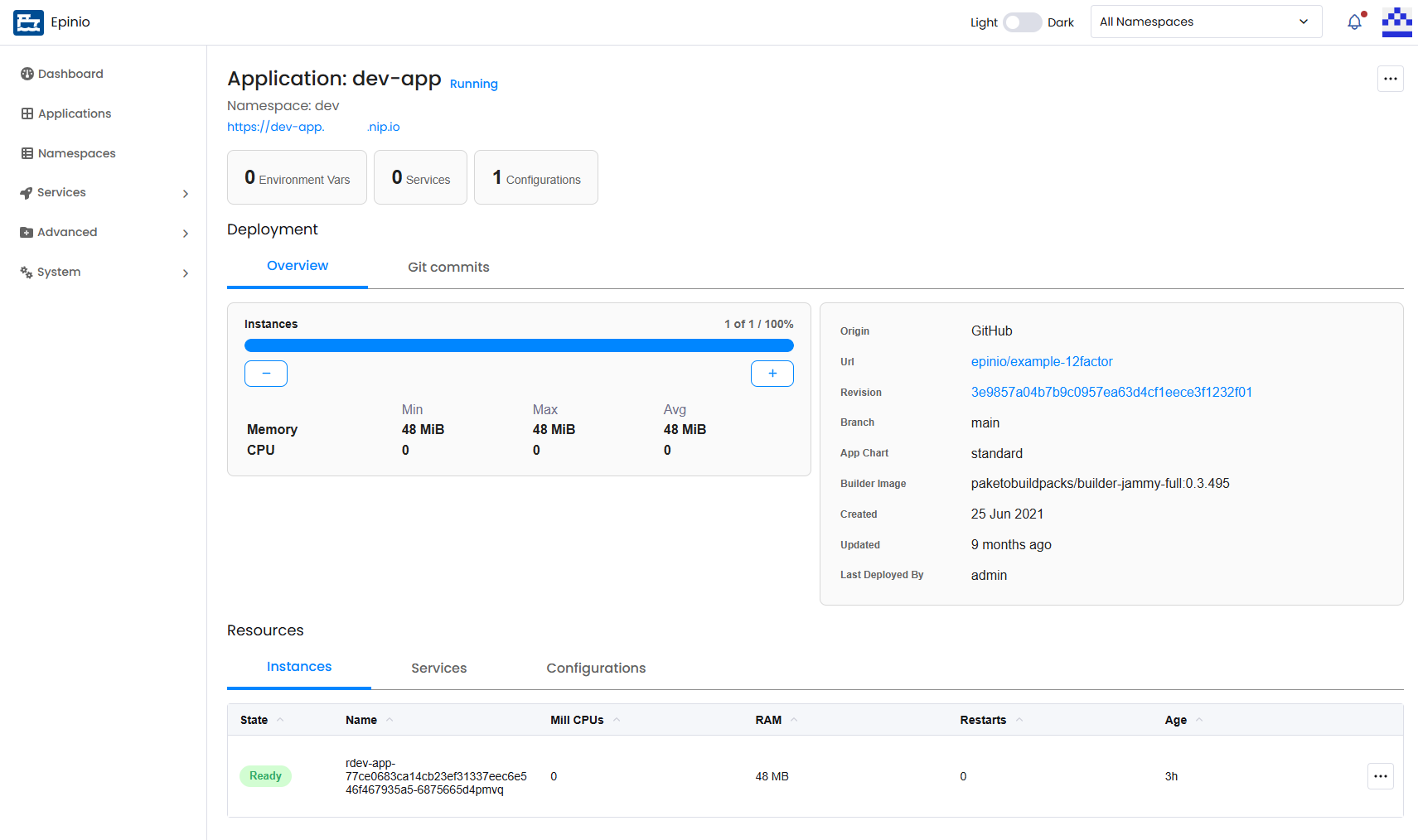
Click an application name in the table to open its details page. From here you can change the number of instances, view bound services and configurations, and, if your source is from Git, change the commit to trigger a rebuild.
Show details for an application:
epinio app show myapp
Edit an Application
- UI
- CLI
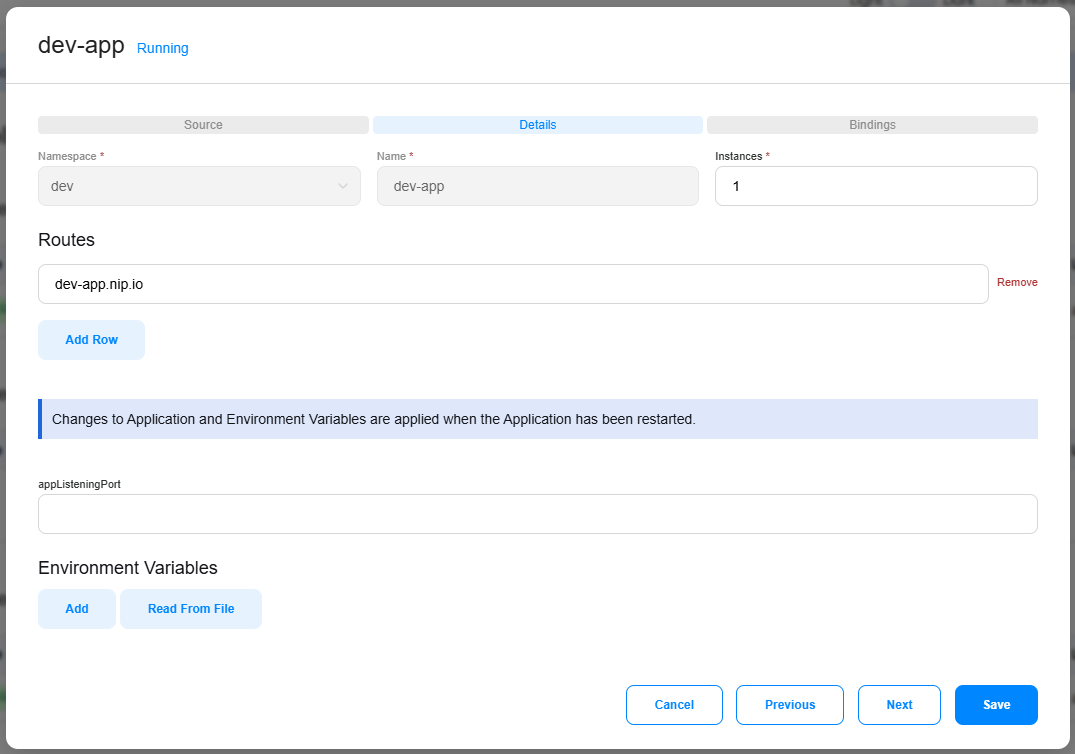
To edit an application, open the action menu on the table row or details page and select Edit. Changes to the application source will require a rebuild and redeployment.
Update an application:
epinio app update myapp
Delete an Application
- UI
- CLI
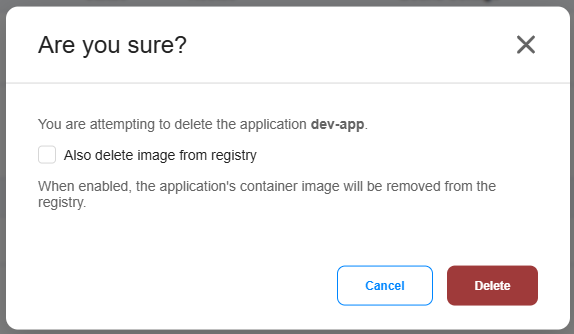
To delete an application, open the action menu on the table row or details page and select Delete.
Delete an application:
epinio app delete myapp
Additional Actions
App Shell
- UI
- CLI
Selecting App Shell in the action menu opens an interactive terminal session inside the running application container for debugging, inspection, and troubleshooting.
Open a shell session inside a running application container:
epinio app exec myapp
App Logs
- UI
- CLI
Selecting App Logs in the action menu opens a terminal displaying the application's runtime output, including informational messages, warnings, errors, and other diagnostic information.
Stream an application's runtime logs:
epinio app logs myapp
Last Build Logs
- UI
- CLI
Selecting Last Build Logs in the action menu opens a terminal displaying logs from the latest application build.
Stream logs from the latest application build:
epinio app logs myapp --staging
Rebuild
- UI
- CLI
Selecting Rebuild in the action menu creates a new application image from the application's source code and deployment configuration, then deploys the updated version.
Rebuild and redeploy an application:
epinio app restage myapp
Restart
- UI
- CLI
Selecting Restart in the action menu restarts an application's running instances without rebuilding its container image or changing its configuration.
Restart an application's running instances:
epinio app restart myapp
Export
- UI
- CLI
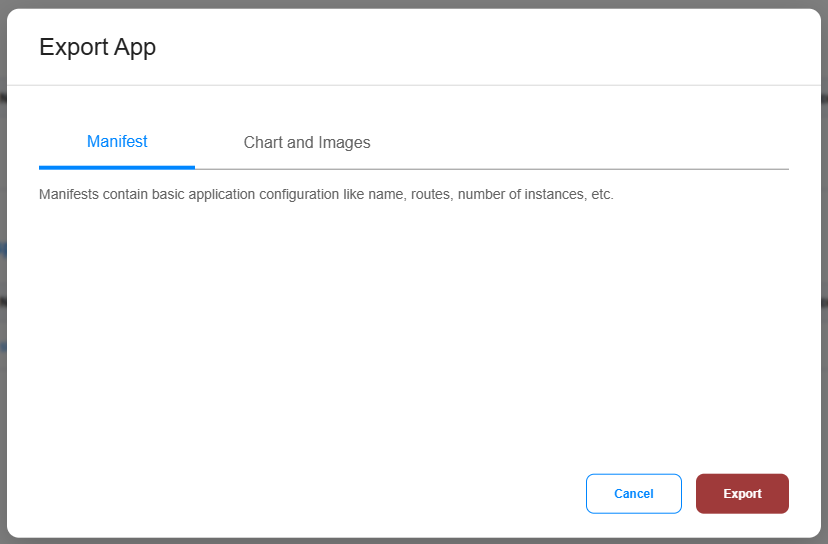
Selecting Export in the action menu downloads an application's deployment artifacts — including its manifest, application charts, and container images — for backup, sharing, or importing into another Epinio environment.
Export an application's artifacts:
epinio app export myapp
Additional CLI Commands
For additional documentation on the CLI commands above, along with additional commands, see the epinio app CLI reference.